07. Customizing the Udacity Carnival Project Part 1
Before you move on, here's a quick gameplay demo of the Carnival scene that shows all the broken mini-games you will fixing when you start the Udacity Carnival project at the end of this course:
Udacity Carnival Project Demonstration
Now that we have the Udacity Carnival project opened in Unity, why don’t we have a little fun and customize it up a little? We will go over everything we are doing in a lot more detail in future courses, but we thought it would be cool to show you how to customize a Unity project and run your own VR app on your mobile phone so you can show it off to your friends.
To get started, in the Project window, navigate to Assets > UdacityVR > Scenes and double-click on the Carnival scene:
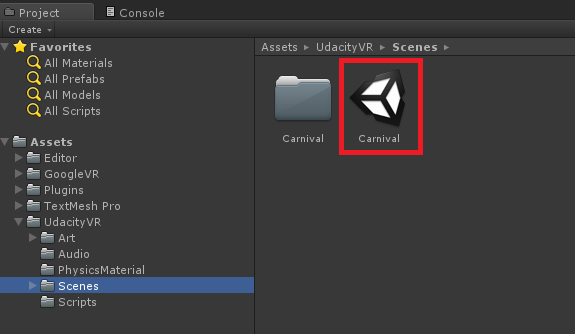
The Carnival scene contains several mini-games that are currently broken. You will be fixing them later, but for now, we have a couple tasks for you to get familiarized with using the Unity interface:
- Adding your name to the Carnival scoreboard
- Moving the Teddy Bear
Navigating in the Game View
If you run the Carnival scene now, using the Play button at the top, you will enter Game mode and Unity will switch you over to the Game view which simulates how the end product will appear on your phone's screen.
Because we are using GoogleVR SDK in this scene, while in Game mode, you can hold down the Alt key and move your mouse to rotate the view and simulate a user looking around.
While still in Game mode, look at the Wheel of Fortune. When you see the reticle, i.e. the white dot in the center of your view, expand and turn in to a larger circle, click the left mouse button to play the Wheel of Fortune game.
When the wheel stops spinning, you will get 100 points. Keep playing the Wheel of Fortune game until you reach a score of 2,000 points and you will notice that something fell on you in the Game view:

The thing that fell on you was a giant Teddy Bear! Let’s practice moving objects by repositioning the Teddy Bear so it doesn't fall on our head next time we play the game.
Any changes you make to game objects in the scene while in Game mode, i.e. the Play button is pressed down, are not saved and therefore lost when you exit Game mode, so make sure you exit Game mode by pressing the Play button again before proceeding to the next section below.
Tip: To save time during development, it can be helpful to temporarily change things to be able to test quicker. In this case, it would save us some time if the Teddy Bear appear sooner. You can do this by temporarily lowering the Teddy Bear Points Min property value of the
Carnival Manageras shown in this image:

Adding Your Name
In the Carnival scene, we have provided a giant scoreboard to keep track of the points you earn in each mini-game. We also gave the scoreboard the title Udacity’s Scores, but this is now going to be your app, so it should say your name!
Start by clicking on the Udacity’s Scores text in the Scene view:

When you do, the Inspector should change and display information about the Title game object. Scroll down to the Text Mesh Pro component and there you will see the words Udacity’s Scores:

Change it to your own name instead of Udacity, and just like that, in the Scene view, you will now see your own name! Part of the rubric requirements include that the name should fit on the board. We can't have any letters floating in mid-air. If your name is longer, you may need to adjust the font size or spacing. The image below uses a "Font Size" of 2 and two lines instead of one. Feel free to be creative here. You can find a variety of settings in the "Font Settings" section, which is under the "Text Input Box" we edit to change the text.

Project Preview:

Project Preview:

Move the Teddy Bear
As part of any carnival, we need a reward and what is better than that giant Teddy Bear! Unfortunately, as you experienced, it falls on the camera, i.e. the user that plays the game, so let’s move it in front of the camera.
Click on the Teddy Bear in the Scene view and when you do, you should see three arrows that are green, red and blue. You can click on any of them to move the teddy bear. Let’s move it closer to the Wheel of Fortune:

Great! Now play the game again and watch the Teddy Bear fall to the ground in front of you instead of on top of you:

